See attachments for Word Document or PDF version
New User: Signing in for the first time
1. Go to a desktop computer. You cannot use a mobile device for the next few steps
2. Click “Other User” down at the bottom left of the screen

3. Sign into the computer using your username (usually first initial combined with last name)
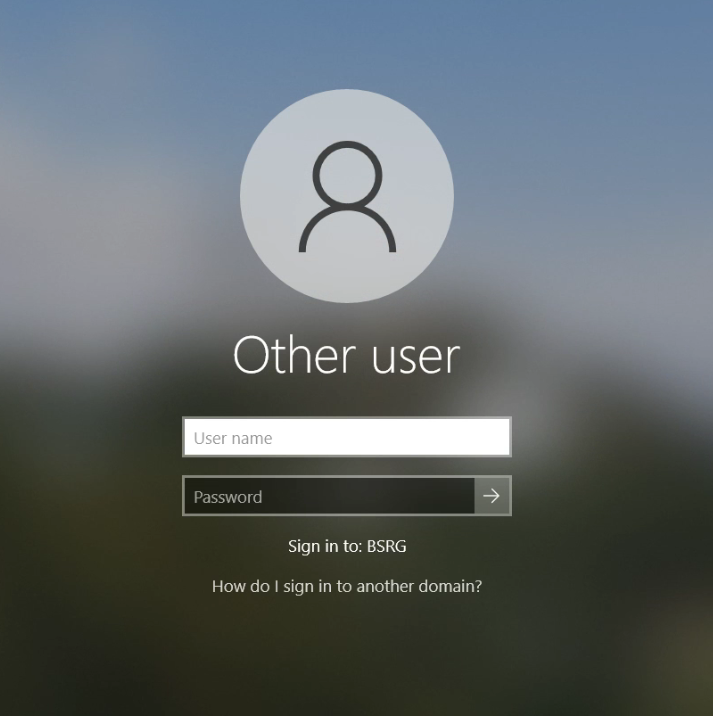
4. It will then prompt the user to change their password.
5. Once their password has been changed and the user has been logged in, while still using a desktop computer go to: https://outlook.office365.com/mail/
6. Sign into your email (Your password will be the one you just set above)
It will then prompt you to add multi-factor authentication to your account (cell phone number)
Once multi-factor authentication (MFA) has been set up, the user can then sign in on a mobile device to complete any additional setup required.
Was this article helpful?
That’s Great!
Thank you for your feedback
Sorry! We couldn't be helpful
Thank you for your feedback
Feedback sent
We appreciate your effort and will try to fix the article